VLC on Apple TV: Unlocking Ultimate Media Playback for Your Big Screen
The arrival of VLC Media Player on the Apple TV platform represents a significant advancement in the way users can consume their digital media libraries on the big screen. For years, VLC has been the undisputed king of versatile media playback on desktop operating systems and mobile devices, renowned for its ability to handle virtually any audio or video format without requiring additional codecs. Now, this powerful functionality is directly accessible on the Apple TV, bridging the gap for users who previously had to rely on workarounds or limited native app support. This article will delve deep into what VLC on Apple TV means for users, its core features, how to get it, its advantages over native solutions, potential limitations, and ultimately, why it’s an indispensable addition for any media enthusiast with an Apple TV.
The core appeal of VLC on any platform lies in its unparalleled format compatibility. This translates directly and powerfully to the Apple TV. Unlike the Apple TV’s native video player, which adheres to Apple’s preferred formats and can often require transcoding of media files, VLC liberates users from this constraint. Whether you have a library of MKV files with AC3 audio, AVI with Xvid, or even less common formats, VLC on Apple TV is designed to play them seamlessly. This eradicates the frustrating and time-consuming process of converting files to ensure they are playable on your smart TV, saving valuable time and processing power. The sheer breadth of supported video and audio codecs means that your existing media collection, regardless of its origin or encoding, can now be enjoyed on the largest screen in your home with minimal hassle.
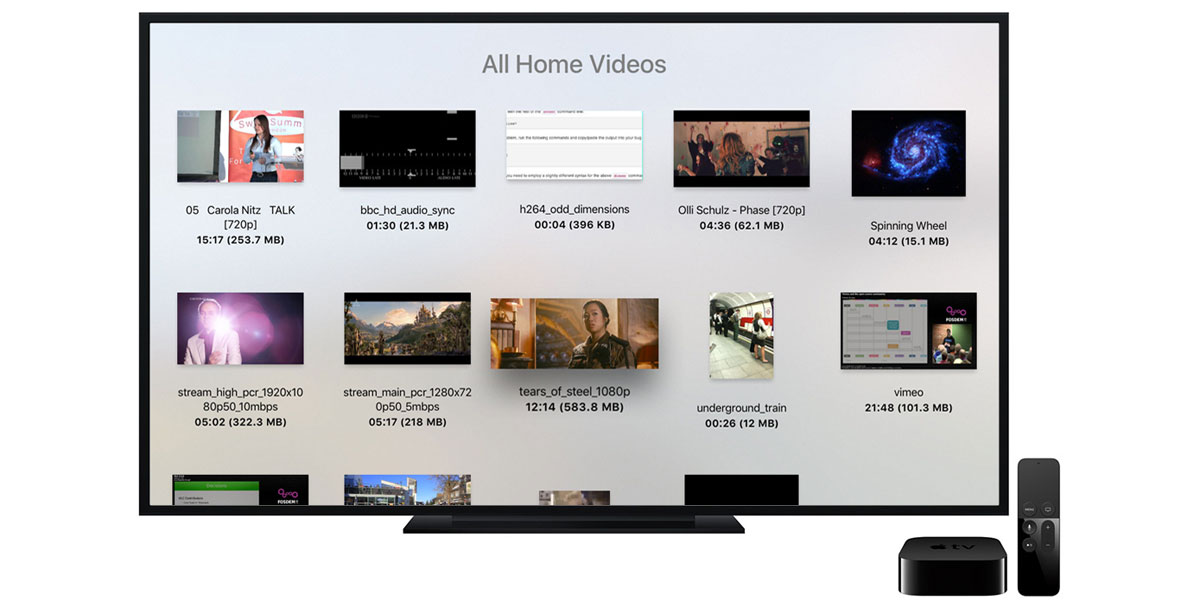
Installation of VLC on Apple TV is a straightforward process, mirroring the ease of acquiring any other application from the tvOS App Store. Users simply navigate to the App Store on their Apple TV, search for "VLC," and initiate the download. The app is free and open-source, a testament to its long-standing commitment to accessibility and user freedom. Once installed, launching VLC reveals an interface designed for ease of navigation on a television screen. It typically presents a clear file browser, allowing users to browse local storage (if connected via USB, though this is less common directly on Apple TV for media playback in the same way as a computer) or, more importantly, network shares. This network browsing capability is a cornerstone of VLC’s utility on Apple TV, enabling access to media stored on Network Attached Storage (NAS) devices, computers on the local network, or even cloud storage services that can be mounted as network shares.
One of the most compelling advantages of VLC on Apple TV is its robust support for various network streaming protocols. This includes UPnP/DLNA, a widely adopted standard for home network media sharing. Many NAS devices and media servers readily support UPnP/DLNA, making it incredibly easy to discover and stream content directly to VLC. The app scans the local network and presents a list of available media servers and their shared folders. Users can then browse through their movie, TV show, or music libraries, select a file, and begin playback with just a few clicks of the Apple TV remote. This eliminates the need for dedicated media server software like Plex or Emby on the Apple TV itself if your primary need is simply playback from existing network shares. While those platforms offer advanced library management, metadata scraping, and remote access, VLC excels in its direct, no-nonsense approach to playing files from the network.
Furthermore, VLC on Apple TV supports direct streaming from SMB (Server Message Block) shares, which are commonly used by Windows computers and many NAS devices. This provides another reliable method for accessing your media library. The process involves entering the network address of the SMB share, along with your login credentials if required. Once authenticated, you gain access to the shared folders and can stream content directly. This level of flexibility in accessing network storage is a significant differentiator from many other media players that may be limited to specific protocols or require more complex setup. The ability to mount and browse these shares directly within the VLC app simplifies the user experience considerably.
Beyond network streaming, VLC on Apple TV also offers excellent subtitle support. It can handle a wide array of subtitle formats, including SRT, ASS, and SSA, and allows users to easily load external subtitle files. For users who collect foreign films or ripped content that may not have embedded subtitles, this feature is invaluable. Users can typically download subtitle files separately and place them in the same directory as their video file, or in some cases, load them manually through the VLC interface. The app also offers options for adjusting subtitle appearance, such as font size, color, and position, further enhancing the viewing experience. This granular control over subtitles is something often lacking in more streamlined native players.
The user interface of VLC on Apple TV, while optimized for remote control navigation, also offers surprising depth for those who want more control over their playback. Beyond basic play, pause, and seek functions, users can often access settings related to audio tracks and subtitle selection directly during playback. This allows for easy switching between different audio streams (e.g., English 5.1 vs. Director’s Commentary) or activating different subtitle languages on the fly, without having to stop the playback and reconfigure settings. The remote responsiveness of the app ensures that these adjustments are fluid and do not interrupt the viewing experience.
For audiophiles, VLC’s support for various audio codecs, including high-fidelity formats, is a significant benefit. While the Apple TV hardware itself has limitations in terms of audio output capabilities, the software’s ability to decode a wide range of audio streams ensures that you are getting the best possible playback from your source files. This is particularly relevant for users with multi-channel audio setups who want to ensure that their surround sound experience is being delivered accurately from their media.
VLC’s historical commitment to open-source development also means that the app is frequently updated with improvements and bug fixes. This is crucial in the ever-evolving landscape of media formats and streaming technologies. Users can generally expect ongoing support and new features to be rolled out over time, ensuring that VLC on Apple TV remains a cutting-edge media playback solution.
While VLC on Apple TV is a powerful tool, it’s important to acknowledge potential limitations. The primary constraint is the reliance on the Apple TV’s hardware capabilities and network performance. Extremely high bitrate 4K HDR content, especially when streamed over a less-than-ideal Wi-Fi connection, might still encounter occasional stuttering or buffering, regardless of the player. However, for the vast majority of common video resolutions and bitrates, VLC performs admirably. Another consideration is that VLC on Apple TV is primarily focused on direct file playback from local storage or network shares. It does not inherently provide the advanced library management, metadata scraping (automatic fetching of movie posters, synopses, cast information), or sophisticated content organization that dedicated media server applications like Plex, Emby, or Infuse offer. If your primary requirement is a beautifully organized and visually rich media library with extensive metadata, you might find yourself using VLC in conjunction with, or in place of, these other solutions depending on your specific needs. However, for pure, unadulterated playback of virtually any file format, VLC remains a top contender.
The simplicity of VLC’s interface also means that it might not appeal to users who crave a highly curated and visually driven interface for their media. While functional and easy to navigate with a remote, it lacks the eye-catching artwork and detailed information that can make browsing a large media library a more engaging experience. For those who primarily stream content from services like Netflix, Hulu, or Disney+, VLC’s role is more about accessing personal media collections rather than discovering new content.
Ultimately, the integration of VLC Media Player onto the Apple TV platform is a game-changer for media enthusiasts. It addresses the long-standing pain point of format incompatibility and provides a user-friendly, powerful, and free solution for accessing and enjoying personal media libraries on the big screen. The ability to stream directly from network shares, its extensive codec support, and robust subtitle functionality make it an indispensable tool. While it may not replace the comprehensive library management features of dedicated media server applications for some users, its core function of delivering seamless, universal media playback is executed with exceptional efficacy. For anyone looking to maximize their Apple TV’s potential as a media consumption device and unlock the full playback capabilities of their digital content, VLC on Apple TV is an absolute must-have application. Its presence significantly enhances the versatility and user experience of the Apple TV, solidifying its position as a leading smart TV platform.

