VLC on Chrome OS: Unlocking Your Media Potential with a Powerful Player
The advent of VLC media player on Chrome OS marks a significant milestone, transforming the Chromebook into a far more capable and versatile media consumption device. Historically, Chrome OS has been perceived as a cloud-centric operating system, primarily designed for web-based applications and light productivity. While this perception holds some truth, the platform has evolved considerably, embracing Android app support and Linux integration, thereby paving the way for robust desktop applications like VLC to thrive. This article delves deep into what VLC on Chrome OS means for users, covering its installation, functionality, benefits, and the broader implications for the platform’s media capabilities.
Historically, Chrome OS users were limited to a handful of basic media players integrated within the operating system or web-based streaming services. For those with extensive local media libraries, comprising various video and audio formats, this often presented a significant hurdle. Many common video codecs and container formats, while universally playable on traditional desktop operating systems like Windows or macOS, struggled for consistent playback on Chrome OS. This led to a fragmented user experience, requiring workarounds such as file conversion or reliance on online streaming, which isn’t always feasible due to data caps or the availability of specific content. The arrival of VLC, renowned for its unparalleled format support and playback features, directly addresses these limitations, democratizing local media playback for the Chromebook user base.
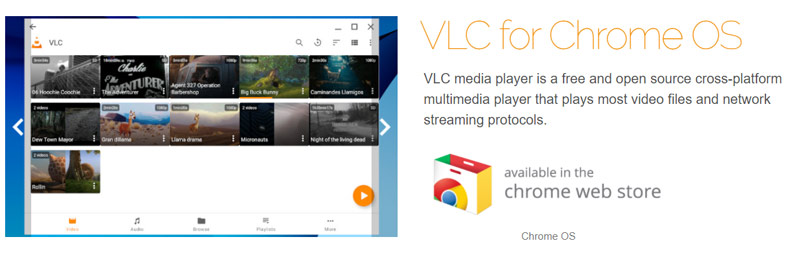
The primary method for installing VLC on Chrome OS is through the Google Play Store. Chromebooks that support Android apps can seamlessly download and install the VLC for Android application. This integration is remarkably straightforward, mirroring the process of installing any other Android app. Once installed, VLC appears as an icon in the Chrome OS launcher, allowing users to launch it directly. The user interface, while optimized for touchscreens, adapts well to the desktop environment of a Chromebook, offering intuitive navigation and controls. For users with existing media files stored locally on their Chromebook, or accessible via cloud storage mounted through the Files app, VLC can immediately begin scanning and playing these files. The app’s ability to access and manage files through the Chrome OS file system is crucial to its utility.
VLC’s core strength lies in its extensive codec support. Unlike many proprietary media players that rely on specific codecs, VLC includes most of the necessary codecs within its own library. This means that users can play virtually any video or audio file format without needing to download additional software or plugins. Common formats like MP4, MKV, AVI, MOV, MP3, FLAC, and AAC are all handled with ease. Furthermore, VLC can also play less common formats, as well as high-definition and even 4K content, provided the Chromebook’s hardware is capable of decoding and rendering such streams. This broad compatibility is a game-changer for anyone who has struggled with "unsupported file format" errors on other players.
Beyond simple playback, VLC on Chrome OS offers a suite of advanced features that elevate the media experience. Users can adjust playback speed, which is particularly useful for learning or reviewing content. Subtitle support is robust, allowing users to load external subtitle files in various formats (SRT, ASS, etc.) and customize their appearance, including font, size, and position. Audio track selection is also straightforward, enabling users to switch between different audio streams within a single file. For video, VLC provides essential controls such as seeking, pausing, playing, and a full-screen mode that truly immerses the user. The ability to create and manage playlists allows for organized viewing and listening sessions.
For users who prefer to leverage the power of Linux on their Chromebooks, an alternative installation method exists: installing the Linux version of VLC. This is particularly beneficial for users who require the full-featured desktop experience of VLC, or for those whose Chromebooks might not have the most up-to-date Android app support. Enabling the Linux development environment on a Chromebook is a simple process through the Chrome OS settings. Once enabled, users can open the Linux terminal and install VLC using package managers like apt. The command is typically sudo apt update && sudo apt install vlc. This method often provides a more robust and feature-complete version of VLC, mirroring its desktop counterpart on Windows and macOS. The Linux version can directly access files within the Linux container, and with proper permissions, can also access files within the Chrome OS file system.
The integration of VLC on Chrome OS also has significant implications for educational and professional environments. In classrooms, Chromebooks are increasingly prevalent. The ability to play a wide range of educational videos, lectures, and multimedia content without compatibility issues greatly enhances their utility as teaching tools. Students can also use their Chromebooks to review recorded lectures or access supplementary video materials. In professional settings, particularly for those who rely on Chromebooks for remote work, VLC provides a dependable solution for playing training videos, product demonstrations, or any other video-based content without the need for external devices or complex software installations.
The performance of VLC on Chrome OS is largely dependent on the hardware specifications of the Chromebook itself. For basic 720p or 1080p video playback, most modern Chromebooks with decent processors and sufficient RAM will perform admirably. However, for higher resolution content like 4K video, or for computationally intensive tasks like hardware-accelerated decoding of specific codecs, a more powerful Chromebook with a capable CPU and GPU will be necessary. The Android version of VLC is generally well-optimized, but users might notice slight performance differences compared to the native Linux or desktop versions, especially when pushing the hardware limits. The Linux version, being a direct port of the desktop application, often offers superior performance and resource utilization when installed on a compatible Linux environment.
One of the key benefits of having VLC on Chrome OS is the consolidation of media playback capabilities. Instead of relying on multiple, often limited, built-in players or web services, users can now have a single, powerful application that handles almost all their media needs. This simplifies the user experience and reduces the friction associated with accessing and enjoying local media files. For users who have invested in digital media libraries, this is particularly empowering, allowing them to fully utilize their content on their Chromebooks. The ability to stream media from local network shares (e.g., using SMB or DLNA) further extends VLC’s utility, transforming the Chromebook into a media hub for the home network.
Beyond video, VLC’s audio playback capabilities are equally impressive. It supports a vast array of audio formats, including lossy formats like MP3 and AAC, as well as lossless formats like FLAC and ALAC. This makes it an excellent choice for audiophiles and anyone who values high-fidelity audio playback. The equalizer and other audio tuning options available in VLC further allow users to customize their listening experience to their preferences. For Chromebooks that are often used for listening to podcasts, music, or audiobooks, VLC provides a superior playback experience compared to basic audio players.
The evolution of Chrome OS, with its increasing support for Android and Linux apps, has fundamentally changed the perception of what a Chromebook can do. VLC’s availability is a testament to this evolution, moving it beyond the realm of simple web browsing and into a more complete computing platform. This opens up possibilities for more specialized use cases, such as using a Chromebook as a dedicated media player for presentations or as a portable entertainment device for travel. The ability to use VLC offline is also a crucial advantage, particularly in situations where internet connectivity is unreliable or unavailable.
For developers and power users, the Linux version of VLC offers additional advantages. It allows for greater customization, integration with other Linux tools, and potentially access to more advanced features or plugins that might not be fully exposed in the Android version. This dual approach to installation – the ease of the Play Store and the power of the Linux terminal – ensures that VLC is accessible and usable for a wide spectrum of Chrome OS users, from the casual media consumer to the more technically inclined individual.
The impact of VLC on Chrome OS is undeniable. It removes a significant barrier to entry for users who rely on local media playback, offering a robust, feature-rich, and highly compatible solution. The seamless integration with the Chrome OS environment, whether through the Android app or the Linux subsystem, makes it an indispensable tool for any Chromebook user looking to unlock the full potential of their device as a media player. As Chrome OS continues to mature, the availability of such powerful desktop-class applications will only solidify its position as a versatile and capable computing platform for a growing number of users. The future of media on Chrome OS is significantly brighter with VLC at its core.

